Skip to content
Novu logoNovu

Changelog

Latest updates and improvements in the workflow steps category.

Follow us on X

All changelog posts

  • Tool steps for on-call services and webhooks

    Send workflow notifications to subscriber-specific PagerDuty, Opsgenie, Grafana IRM/OnCall, or custom HTTP endpoints through a first-class Tool channel.

    Authors:
    George DjabarovVictor Yakubu
    George D., Victor Y.
    Tool channel steps for on-call services and webhooks

    Tool is now a first-class channel in Novu workflows, alongside Email, SMS, Chat, and Push. Add a Tool step when a notification needs to create an on-call alert or reach an HTTP endpoint instead of a person-facing messaging channel.

    The first Tool providers are PagerDuty, Opsgenie, Grafana, and Tool Webhook.

    Tool channel step

    Route alerts to each subscriber's on-call service

    PagerDuty, Opsgenie, and Grafana use subscriber-specific channel endpoints. Each subscriber can connect a PagerDuty service, an Opsgenie account or team, or a Grafana IRM/OnCall stack. A single workflow then resolves the matching destination for each subscriber at delivery time.

    This supports products whose customers need alerts delivered to their own on-call systems. Your application collects the destination credential or webhook URL and registers it through the channel endpoints API. You do not need a separate provider integration or routing implementation for every customer.

    If a subscriber has no endpoint for the selected provider, Novu marks the Tool step as skipped for that subscriber. Other subscribers in the same trigger are unaffected.

    Send to shared or customer-defined HTTP endpoints

    Tool Webhook covers destinations that do not have a native Tool provider. It supports two routing modes:

    • Static: Configure one shared endpoint on the integration. Every delivery goes to that URL.
    • Dynamic: Register one or more tool_webhook endpoints for each subscriber. Novu sends the Tool step to every endpoint registered for that subscriber.

    Dynamic endpoints can define their own URL, headers, and POST, PUT, or PATCH method. This gives each subscriber control over where their notifications go without hardcoding those destinations in your workflow.

    Shape, sign, and inspect webhook deliveries

    Tool Webhook lets you configure the outbound JSON without replacing the content authored in the workflow. Novu builds the request from the integration-level JSON body, the rendered Tool step content, and step overrides. The rendered step content is always sent as content and wins if the integration body defines the same key.

    You can set a signing secret to add an HMAC-SHA256 digest in the X-Novu-Signature header. The receiving server can verify the signature against the raw request body before processing the delivery.

    Novu handles delivery retries and records the result in Activity, so you can inspect the workflow run, delivery status, and attempts without maintaining a separate webhook delivery system.

    To use the new channel:

    1. In the Integrations Store, select Connect Provider, open the Tool tab, and choose a provider.
    2. Add a Tool step to a workflow and write its content with the same Liquid variables available to other workflow steps.
    3. For subscriber-specific routing, register each destination through the channel endpoints API from your backend.
    4. Trigger the workflow as usual. Novu resolves the destination, delivers the Tool step, and records the result in Activity.

    Read the setup guides for PagerDuty, Opsgenie, Grafana, and Tool Webhook.

  • Throttle Step

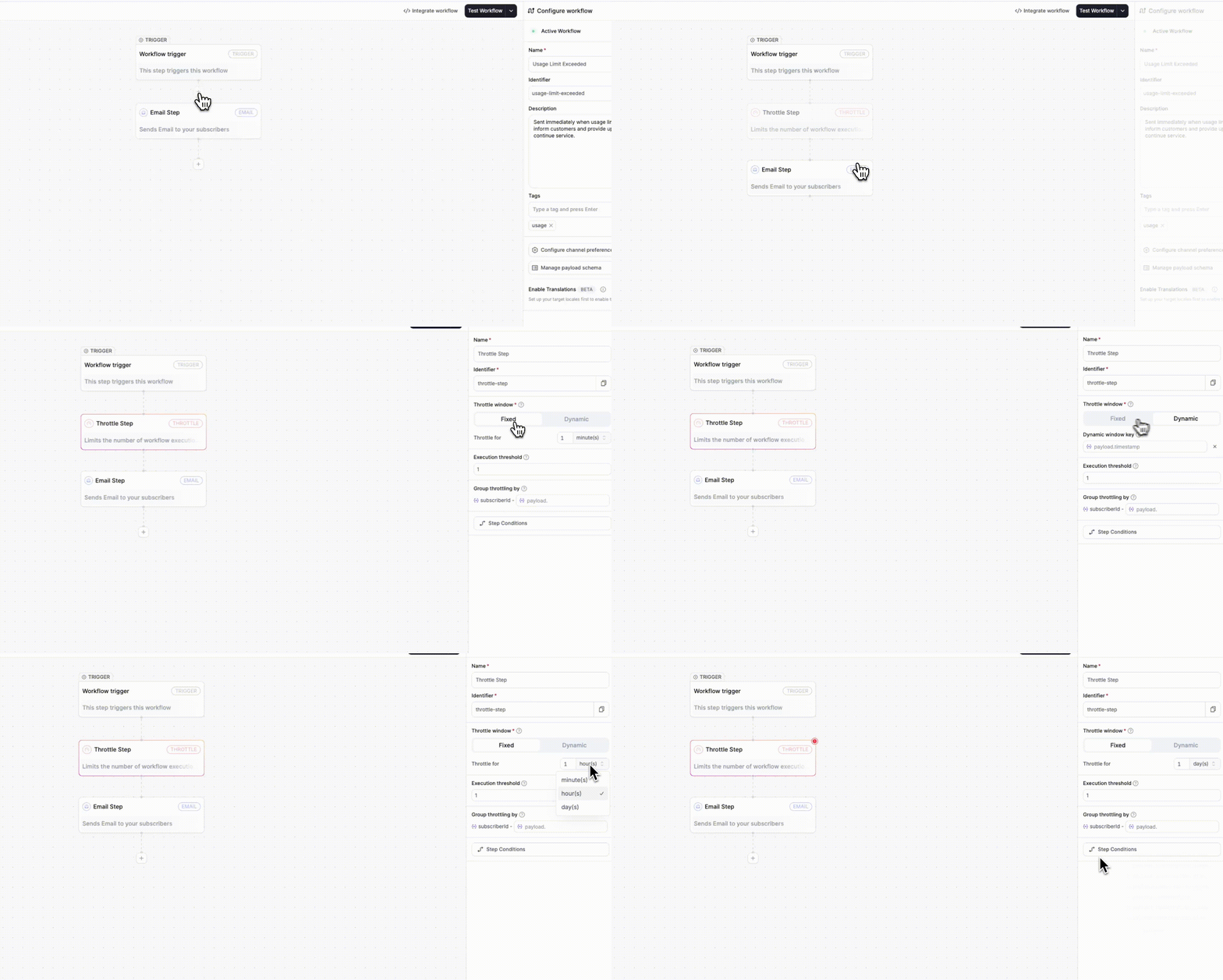
    The new Throttle Step allows you to limit the frequency of a workflow execution for each subscriber within a specified time window. This will prevent duplicate or excessive notifications across all channels. You can use fixed or dynamic windows. Perfect for managing high-frequency alerts, cron jobs, or multi-project notifications.

    Author:Dima Grossman
    Dima Grossman
    Throttle Step

    The new Throttle step in the Novu workflow editor allows you to limit the number of notifications a subscriber receives within a specified time frame, ensuring they receive the right amount, neither too many nor too few.

    When a trigger fires repeatedly (e.g., from cron jobs or high-frequency alerts), throttling ensures that subscribers don’t receive duplicate messages across any channel.

    Throttle Step

    You can now:

    • Configure throttling directly in the workflow editor.
    • Define Fixed or Dynamic throttle windows.
    • Limit executions by subscriberId or add a secondary grouping key from your payload (e.g., payload.projectId).
    • Prevent notifications from executing beyond your defined threshold (even for critical workflows).
    • Transparently control frequency across all channels (email, in-app, SMS, chat, push).

    Configuration options:

    • Fixed window: Set a predefined duration (e.g., “1 per hour”) with an execution threshold.
    • Dynamic window: Define flexible time ranges using trigger payloads (payload.throttleUntil or payload.customWindow).
    • Group throttling by: Combine subscriber and payload-level keys for granular control (e.g., per project or account).

    Learn more by visiting the Throttle Step documentation →

    Improvements (3)
    • Schemas now support null values for optional fields in workflows, ensuring executions no longer fail when data is intentionally unset.

    • Add support for excluding specific subscribers from topic-triggered workflow fanouts using an optional exclude array.

    • Add support for defining a custom display order of workflows in the Preferences UI, allowing prioritized workflows to appear at the top.

    Fixes (1)
    • fix(dashboard-ui): Unify and align all dashboard tables (Workflows, Subscribers, Topics, Topic Subscriptions) using the new OriginUI table component for consistent layout, pagination, and record visibility.

  • Scheduled Delay

    Schedule your workflows with precision - pause until the exact minute, hour, or weekday in each subscriber’s local time, and even align delivery with their working hours.

    Author:Paweł Tymczuk
    Paweł Tymczuk
    Scheduled Delay

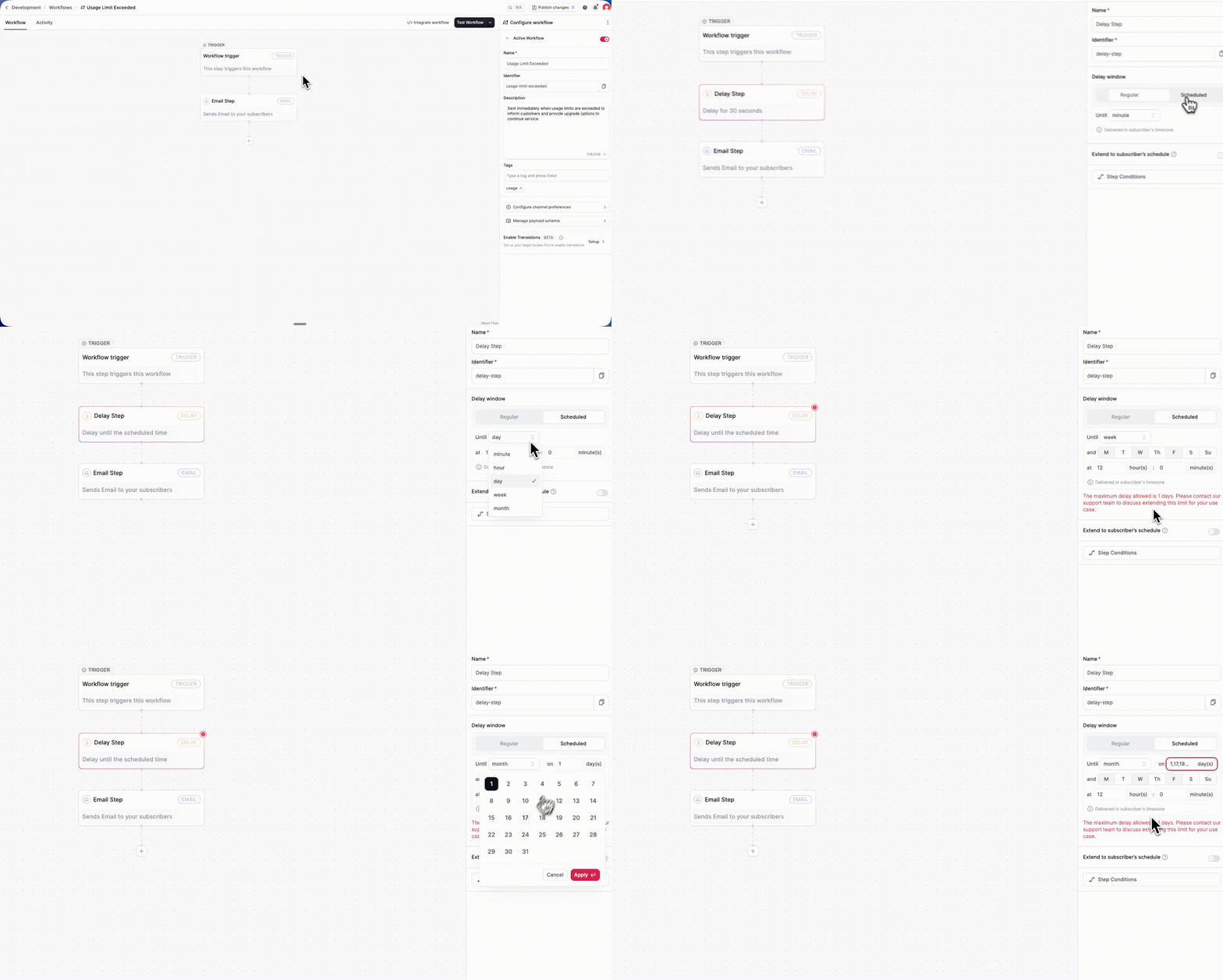
    You can now schedule workflow pauses using an intuitive time selector - allowing you to delay messages until an exact time, day, or week in your subscriber’s local timezone.

    Scheduled delay

    This new Scheduled Delay option (when configuring the Delay step) provides developers with fine-grained, time-aware control over workflow timing, allowing you to match your subscribers’ schedules, respect working hours, and ensure messages arrive at the optimal moment, not just after a fixed interval.

    What you get:

    • Two delay modes: choose between
      • Regular Delay: wait a fixed duration (e.g. “5 minutes”)
      • Scheduled Delay: wait until a specific time or date pattern
    • Flexible scheduling options:
      • Until minute — delay until the next minute mark
      • Until hour — at X minute(s) of the hour
      • Until day — at X hour(s) : X minute(s)
      • Until week — choose one or more days (Mon–Sun) at X hour(s) : X minute(s)
      • Until month — choose specific day(s) of the month and time of day
    • Time zone–aware delivery: All delays are evaluated and executed in the subscriber’s local time zone.
    • Working hours support: toggle “Extend to subscriber’s schedule” to automatically hold delivery until the subscriber’s next available time window.
    • Configurable limits: by default, delays can extend up to 1 day (contact support to extend for longer intervals)

    Example use cases:

    • Send a weekly digest every Friday at 9:00 AM subscriber local time.
    • Deliver a trial reminder at 8:00 AM on the day of expiry.
    • Respect user schedules by delaying notifications until working hours.

    How to use it:

    In the workflow editor → add a Delay step → select “Scheduled” → configure your timing (minute, hour, day, week, or month) and enable “Extend to subscriber’s schedule” if needed.